
Page Contents
Last updated: October 2026
Visitors decide whether a page is useful long before they read it closely. The website layout, meaning how headings, text, images, buttons and navigation are arranged, guides their eyes, shows what matters and tells them what to do next. A clear layout feels effortless, and visitors rarely notice it. A confusing one costs you attention, trust and conversions.
This guide explains how layout affects user experience, describes the most common layout types, gives nine tips for designing a UX-friendly website layout and shows how to test whether yours really works. Where figures come from secondary sources, we say so.
Why Does Website Layout Matter?
Layout shapes where attention goes. Nielsen Norman Group (NN/g) eyetracking research published in 2018 found that about 57% of viewing time on a page was spent above the fold, and about 74% within the first two screenfuls. A 2010 study had found about 80% above the fold, so people scroll more today, but attention still falls sharply further down the page. That is why the first screen should state your value and show a clear next step.
Device use matters, too. Statcounter data for 2025 put mobile at roughly 60% to 63% of global web traffic, depending on whether tablets are counted. A layout that works only on a big desktop screen misses most of your audience. Finally, layout affects results: it influences how fast people find information, how easily they complete forms and whether they trust the page, all of which feed your conversion rate.
Common Website Layout Types
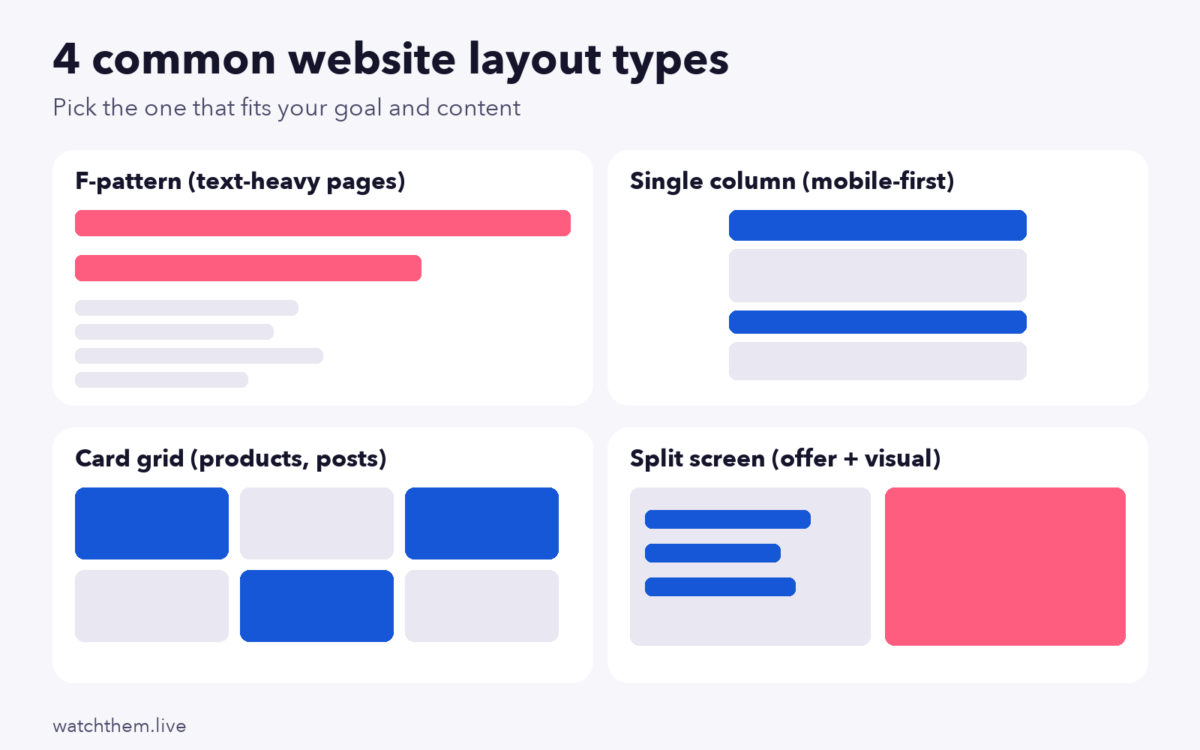
There is no single best layout. Choose based on your content and goal.
F-Pattern Layout
NN/g identified the F-shaped scanning pattern in 2006: people read across the top of a text-heavy page, then across a shorter area lower down, then scan down the left side. Later studies found the pattern on both desktop and mobile, though it does not always appear and good design can prevent it. For text-heavy pages, put the key message in the first lines, use clear subheadings and start paragraphs with important words.
Single-Column Layout
A single column stacks content vertically. It is the natural choice for mobile screens and for focused pages such as sign-ups, because it removes distractions and keeps one clear path.
Card or Grid Layout
Cards group an image, title and short text into a tile. Grids of cards suit product listings, blog indexes and dashboards, because people can scan many options quickly and compare them. Keep card sizes and spacing consistent.
Split-Screen Layout
A split screen divides the page into two halves, usually text and a call to action on one side and an image or product visual on the other. It works well for landing pages and hero sections that need to show an offer and an image together.
Long-Scroll Story Layout
Long pages that tell a story in sections, such as problem, solution, proof and offer, suit products that need explanation. Give each section one idea and repeat the call to action along the way.
9 Tips for Designing a UX-Friendly Website Layout
1. Keep It Simple
Every element competes for attention, so remove anything that does not help the visitor reach a goal. Use plenty of white space, limit your colors and fonts and keep each section focused on one idea. The principles in our guide to CRAP design principles (contrast, repetition, alignment and proximity) give you a quick way to check this.
2. Put the Key Message Above the Fold
The first screen should answer “What is this, and why should I care?” Include a clear headline, a short supporting line, a relevant image and one primary call to action. Read more in our guide to the above the fold area.
3. Design Around a Goal
Decide what each page is for, and arrange the layout to lead to that action. A landing page should have one main call to action, a product page should make the buy button easy to find and a blog post should guide readers to a related article. Our landing page checklist covers the elements to include.
4. Build for Mobile First
Start with the smallest screen and add complexity for larger ones. Use a responsive grid, readable text without zooming, tap targets of at least 24 by 24 CSS pixels (the WCAG 2.2 minimum) and no pop-ups that cover the content. See mobile CRO for more.
5. Make Navigation Intuitive
Visitors should always know where they are and how to get where they want to go. Keep the main menu short, use clear labels instead of clever ones, add search on larger sites and place the logo and menu in familiar spots.
6. Create a Clear Visual Hierarchy
Use size, weight, color and spacing to show what is most important. The largest, boldest element should be the one you most want people to see. Group related items close together and separate unrelated ones.
7. Keep Layout Consistent
Use the same grid, spacing, button styles and heading styles across pages, so visitors learn the interface once. Consistency also builds trust and speeds up your design work.
8. Design for Speed and Accessibility
A beautiful layout that loads slowly will lose visitors. Google’s Core Web Vitals target a Largest Contentful Paint of 2.5 seconds or less and a layout shift score of 0.1 or less, so reserve space for images and ads to stop content from jumping. For accessibility, keep text contrast at 4.5:1 or higher, make sure every control works with a keyboard and use headings in a logical order.
9. Show Proof Near the Decision
Place ratings, testimonials and guarantees next to the call to action or the price, where doubts arise. A Spiegel Research Center study found that products with five reviews were about 270% more likely to be purchased than products with none.
Layout Tips by Page Type
- Home page: a clear value statement, main navigation, a path for each main audience and proof of credibility.
- Landing page: one goal, minimal navigation, a short form and strong message match with the ad.
- Product page: large images, price and buy button above the fold, reviews and shipping details nearby. See the add to cart button and shopping cart design guides.
- Blog post: readable line length, clear headings, a table of contents for long articles and related links at the end.
- Pricing page: a simple comparison, a highlighted recommended option and answers to common objections.
How to Test Your Website Layout
Do not assume a layout works because it looks good. Check it with data:
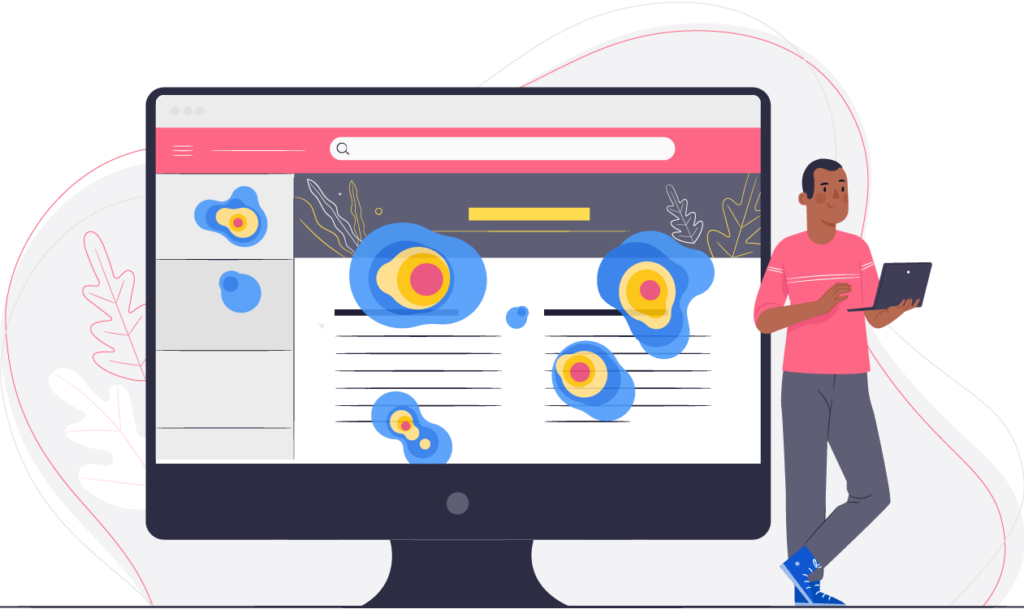
- Heatmaps show where visitors click, move and scroll, and whether they see your main button.
- Session recordings reveal confusion, rage clicks and abandoned forms.
- Analytics show bounce rate, scroll depth and goal completion. Read about key website UX metrics.
- Surveys and user feedback tell you what visitors could not find.
- A/B tests compare two layouts on real traffic. See landing page testing.
If your layout needs a major update, read our guide to website redesign before you start, and see how layout fits into CRO and UX.
How Layout Affects SEO and Engagement
Layout is not only a design matter. Search engines and visitors both reward pages that are easy to use. A clear heading structure, with one main heading and logical subheadings, helps people scan and helps search engines understand your content. Fast, stable pages score better on Core Web Vitals, which Google uses as part of its page experience signals. A mobile-friendly layout matters because Google primarily uses the mobile version of a page for indexing.
Good layout also keeps visitors engaged. When the next step is obvious, people read more, click further and come back. Track scroll depth, time on page and pages per session, and read our guide to website user engagement to see what to measure.
Common Website Layout Mistakes
- Too many competing calls to action.
- Important content hidden below banners or sliders.
- Cluttered navigation with too many menu items.
- Desktop-only thinking, with small tap targets and wide tables on phones.
- Inconsistent spacing and styles from page to page.
- Layout shifts caused by late-loading images, ads or fonts.
- Never testing. Treating launch as the finish line.
Frequently Asked Questions About Website Layout
What is a website layout?
A website layout is the arrangement of elements on a page, including text, images, buttons and navigation, that determines how visitors see and use the content.
What is the best website layout for conversions?
It depends on your goal. Focused layouts with one clear action, such as single-column or split-screen designs, usually work well for landing pages, while grids suit product listings. Test to find what works for your audience.
What does above the fold mean?
It is the part of a page visible without scrolling. NN/g’s 2018 eyetracking study found that most viewing time, about 57%, still happened above the fold.
How many columns should a website layout have?
Use one column on mobile and up to two or three on desktop, depending on content. More columns add complexity and can hurt readability.
How often should I update my website layout?
Review key pages every quarter using heatmaps and recordings, and make small improvements. Plan a larger redesign only when data shows persistent problems.
Conclusion
A UX-friendly website layout is simple, goal-focused, built for mobile first, fast and consistent. Put your key message where people look first, make navigation obvious and place proof near decisions. Then check your layout with heatmaps, recordings and A/B tests, because real visitors will always show you problems that opinions miss.
